 Organiq
: Google Search Console in Claude, ChatGPT and Cursor, with your own data
An MCP connector with read-only Google access that gives Claude, ChatGPT, Cursor and other agents the Google Search Console data and the sessions coming from AI assistants (GA4) of the properties you connected. Data lives in Organiq's own database, synced every day; analyses (CTR curve, decay, cannibalization, opportunities) run on the server and come back ready.
During the launch, all features are unlocked, no card required.
Founding offer: GEO add-on free for 6 months for the first 10 accounts · 7 left
Install it with your AI
Pick your assistant. Follow the numbered steps, or copy the prompt and paste it in the chat: the assistant walks you through the same steps.
Before you start
- Have a site verified in Google Search Console. You do not need to create an account first: the connector sign-in creates the Organiq account, imports your properties and activates the chosen one. The dashboard (https://app.organiqgeo.com, "Connect Search Console") does the same if you prefer to start there.
- The URL
https://organiqgeo.com/mcpis for your AI client. Opening it in a browser shows a technical message (HTTP 405); that is expected. - When you click Connect, the client opens Google sign-in: pick the Google account that has the site in Search Console. Google asks for e-mail, name and picture plus read-only access to Search Console and Google Analytics; keep both ticked. Then the Organiq screen shows which application is asking (and lets you pick one property when there are several); click Allow.
- Without an account or without a property, the 4 public tools work:
get_capabilities,get_ctr_benchmark,check_connection,check_ai_access. The other 47 ask you to sign in.
Step by step: Claude
- In Claude, open Settings → Connectors and click Add custom connector.
- Name
Organiq, MCP server URLhttps://organiqgeo.com/mcp; leave the client ID and secret fields blank. - Under authentication, pick the option that signs in now or when needed, never the option without sign-in. Under OAuth client, keep Claude's published identity (the one marked as recommended). Leave the request headers empty.
- Click Add, then Connect.
- Sign in with Google and click Allow on the Organiq screen.
- Back in Claude the connector shows as Connected; the tools are listed under Tool permissions.
Or paste this prompt in the chat:
Goal: connect the Organiq MCP connector (read-only Google Search Console / GA4 data) to this chat (claude.ai).

1. Ask me which Google account has my site verified in Search Console. The sign-in creates the Organiq account and imports the properties; no setup at https://app.organiqgeo.com first.
2. You cannot add connectors yourself, so guide me in 4 short steps: (a) Settings → Connectors → Add custom connector; (b) name Organiq, MCP server URL https://organiqgeo.com/mcp, Client ID and secret left blank, never without sign-in; (c) Add, then Connect; (d) sign in with my Organiq Google account and click Allow. Wait until I say it is done.
3. Call check_connection, then list_sites, and summarize in 3 lines.

Rules: if a call returns 401, ask me to finish the Google authorization. If it returns plan_limit, show the message as is. No API key is needed; use the Google sign-in.What the assistant will do: 1. Confirms your account and property 2. Walks you through Settings → Connectors 3. Tests with check_connection and list_sites
Step by step: Claude Code
- In a terminal:
claude mcp add --transport http organiq https://organiqgeo.com/mcp - In a Claude Code session, run
/mcp, pickorganiqand choose Authenticate. - The browser opens Google sign-in, then the Organiq screen: click Allow.
claude mcp listshowsorganiq … ✔ Connected.
Or paste this prompt in the chat:
Goal: connect the Organiq MCP connector (read-only Google Search Console / GA4 data) to Claude Code.

1. Ask me which Google account has my site verified in Search Console. The sign-in creates the Organiq account and imports the properties; no setup at https://app.organiqgeo.com first.
2. Run: claude mcp add --transport http organiq https://organiqgeo.com/mcp
3. Tell me to run /mcp, pick organiq and choose Authenticate; the browser opens Google sign-in. Wait until I say it is done.
4. Call list_sites, then get_site_summary for the first property, and give me a 3-line summary.

Rules: if a call returns 401, ask me to finish the Google authorization. If it returns plan_limit, show the message as is. No API key is needed; use the Google sign-in.What the assistant will do: 1. Confirms your account and property 2. Runs claude mcp add and asks you to authenticate 3. Tests with list_sites and get_site_summary
Step by step: Cursor
- In
~/.cursor/mcp.json(or.cursor/mcp.jsonin the project), add"organiq": { "url": "https://organiqgeo.com/mcp" }undermcpServers. - Open Settings → MCP and enable
organiq. - Approve the OAuth window: Google sign-in, then Allow on the Organiq screen.
Or paste this prompt in the chat:
Goal: connect the Organiq MCP connector (read-only Google Search Console / GA4 data) to Cursor.

1. Ask me which Google account has my site verified in Search Console. The sign-in creates the Organiq account and imports the properties; no setup at https://app.organiqgeo.com first.
2. Add this entry under "mcpServers" in ~/.cursor/mcp.json (or .cursor/mcp.json in this project), keeping the servers already there:
"organiq": { "url": "https://organiqgeo.com/mcp" }
3. Tell me to open Settings → MCP, enable organiq and approve the OAuth window (Google sign-in). Wait until I say it is done.
4. Call check_connection, then list_sites, and give me a 3-line summary.

Rules: if a call returns 401, ask me to finish the Google authorization. If it returns plan_limit, show the message as is. No API key is needed; use the Google sign-in.What the assistant will do: 1. Confirms your account and property 2. Writes the organiq entry in mcp.json 3. Asks you to approve OAuth, then tests
Step by step: ChatGPT
- In ChatGPT on the web, open Plugins, select +, then Add custom MCP server.
- Name
Organiq; under Connection, server URLhttps://organiqgeo.com/mcp; authentication OAuth, client ID blank. - Confirm the warning, create the plugin and install it: Google sign-in, then Allow on the Organiq screen.
- In a new chat, type @ and pick
Organiq.
Or paste this prompt in the chat:
Goal: connect the Organiq MCP connector (read-only Google Search Console / GA4 data) to ChatGPT.

1. Ask me which Google account has my site verified in Search Console. The sign-in creates the Organiq account and imports the properties; no setup at https://app.organiqgeo.com first.
2. You cannot add MCP servers yourself, so guide me in 4 short steps: (a) ChatGPT web: Plugins → + → Add custom MCP server; (b) name Organiq, URL https://organiqgeo.com/mcp, OAuth, no client ID; (c) create and install the plugin, sign in with my Organiq Google account, click Allow; (d) in a new chat, type @, pick Organiq, paste step 3. Wait until I say it is done.
3. Call check_connection, then list_sites, and summarize in 3 lines.

Rules: if a call returns 401, ask me to finish the Google authorization. If it returns plan_limit, show the message as is. No API key is needed; use the Google sign-in.What the assistant will do: 1. Confirms your account and property 2. Walks you through Plugins → Add custom MCP server 3. Tests with check_connection and list_sites
Step by step: Gemini CLI
- In a terminal:
gemini mcp add --transport http organiq https://organiqgeo.com/mcp(or add"organiq": { "httpUrl": "https://organiqgeo.com/mcp" }undermcpServersin~/.gemini/settings.json). - In a session, run
/mcp auth organiq: Google sign-in, then Allow on the Organiq screen. /mcplists the server and its 51 tools.
Or paste this prompt in the chat:
Goal: connect the Organiq MCP connector (read-only Google Search Console / GA4 data) to Gemini CLI.

1. Ask me which Google account has my site verified in Search Console. The sign-in creates the Organiq account and imports the properties; no setup at https://app.organiqgeo.com first.
2. Run: gemini mcp add --transport http organiq https://organiqgeo.com/mcp
(or add "organiq": { "httpUrl": "https://organiqgeo.com/mcp" } under "mcpServers" in ~/.gemini/settings.json).
3. Tell me to run /mcp auth organiq; the browser opens Google sign-in. Wait until I say it is done.
4. Call check_connection, then list_sites, and give me a 3-line summary.

Rules: if a call returns 401, ask me to finish the Google authorization. If it returns plan_limit, show the message as is. No API key is needed; use the Google sign-in.What the assistant will do: 1. Confirms your account and property 2. Runs gemini mcp add and asks you to run /mcp auth 3. Tests with check_connection and list_sites
Connected: what now?
Paste these three questions in the chat, in this order. Replace [my site] with a name from the first answer.
Which sites do I have in Organiq?
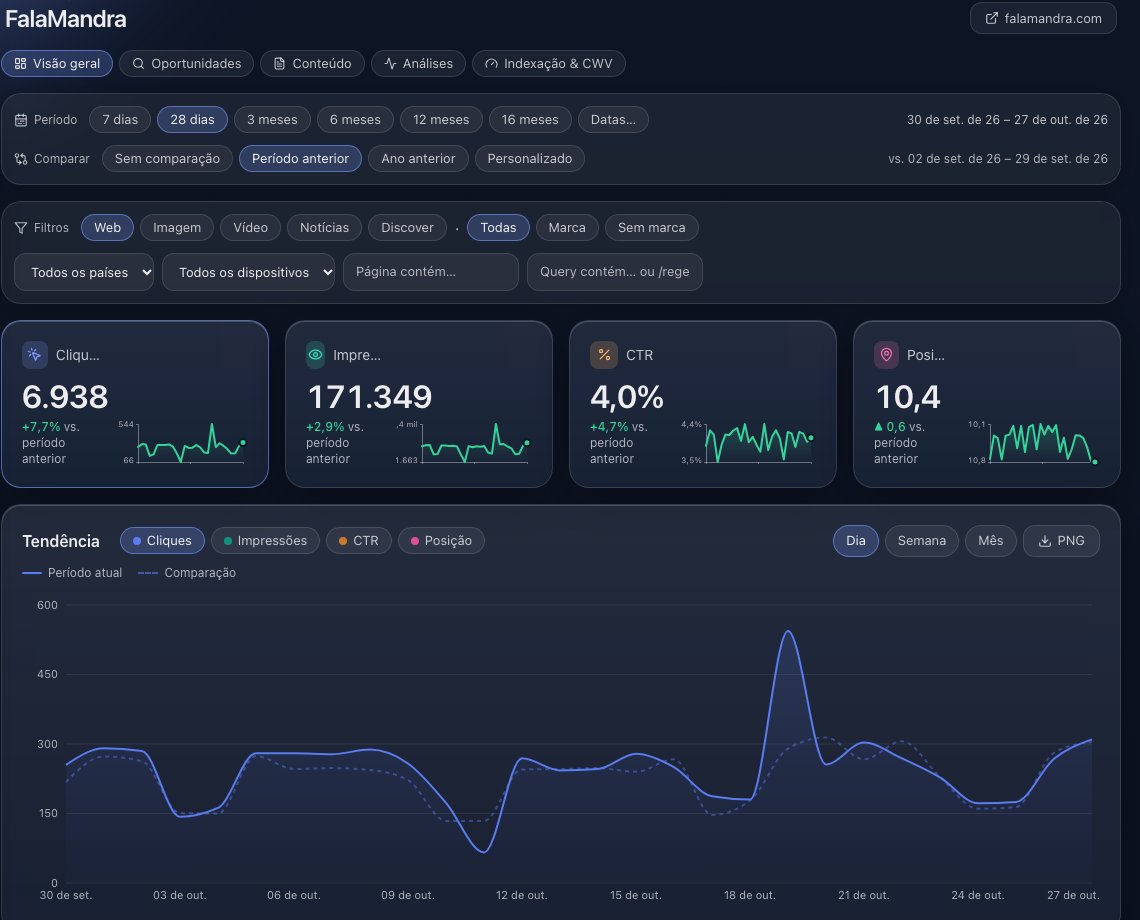
How did [my site] do in the last 28 days compared with the previous 28?
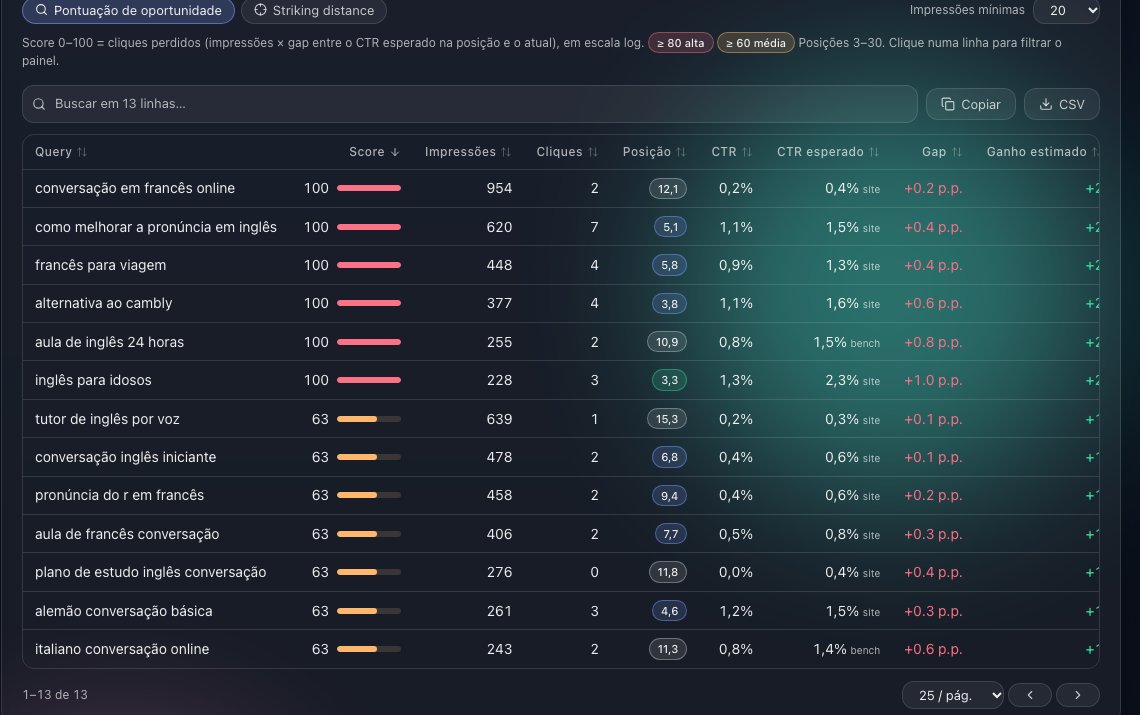
What are the quick wins for [my site]?
If the answer says there is no data yet, the property's first sync has not finished. While it runs, the answer gives the percent of the history already synced and, when there is an estimate, the minutes left. The sync brings up to 16 months of Search Console history, and an e-mail arrives when that history is ready. check_connection shows the dates once the data exists.
Works withClaudeChatGPTCursorGemini CLIClaude Code
Questions it answers
- How did example.com do in the last 28 days compared with the previous 28?
- Which queries grew the most and which lost clicks last month?
- Which pages are decaying compared with six months ago?
- Where are we cannibalizing: several pages ranking for the same query?
- Give me quick wins: queries with CTR below the expected for their position.
- How many sessions came from ChatGPT, Perplexity and Gemini this month?
- Which queries did we lose rankings for, and which are new, versus the previous 28 days?
- Was there an unusual day last month? Did traffic settle at a new level after the update?
- Forecast clicks for the next 12 weeks; what if we grow 10%?
- How is example.com doing on Core Web Vitals and on Bing?
- Write the monthly SEO report for example.com.
- Send these 20 new URLs of example.com for indexing and tell me which ones were skipped.
- Can GPTBot, ClaudeBot and PerplexityBot read example.com/blog/post? Does the site have llms.txt?
- Audit example.com: what is broken on the pages that get impressions, and which internal links should I add?
Start in 3 steps
Create your account
Sign in with Google at app.organiqgeo.com. During the launch, all features are unlocked, no card required.
Create accountConnect Search Console
Click "Connect Search Console" and pick the properties. Read-only access; the first sync starts right away.
Open the dashboardPaste the URL in your AI client
Add the MCP URL below as a connector in Claude, ChatGPT, Cursor or Gemini CLI and authorize with the same Google account.
MCP endpoint: OAuth 2.1 (Google sign-in) or a personal API key. 4 tools work without signing in.
Client guideshttps://organiqgeo.com/mcp
What you can check before you pay
- Read-only Google access. Google access uses the
webmasters.readonlyscope and nothing writes to your Search Console, GA4 or Bing. The 45 read tools only read; the 6 tools that write change only Organiq data. - Revoke in one click. Remove Organiq at myaccount.google.com/permissions; the sync stops immediately.
- Delete your data. Deleting the account removes properties, history, tokens and keys at once: data deletion.
- Payment through Stripe. Card numbers never reach Organiq's servers; cancel any time in the billing portal.
- No card. During the launch, all features are unlocked, no card required.
- Support by e-mail. youssefpmat@gmail.com · How we protect your data
What is Organiq?
Organiq (organiqgeo.com) is the Google Search Console connector for AI agents: Claude, ChatGPT, Cursor and Gemini CLI connect with one URL and a read-only Google sign-in and get Search Console, GA4 AI-assistant sessions and Bing in one MCP server, with 51 tools and history beyond Google's 16 months. Free plan; paid from US$ 9/month. Operated by Youssef Pizolotto Umar.
How Organiq differs, with the exception for each
- Remote connector with Google sign-in: no Google Cloud project, service account or downloaded key. Exception: GSC Wizard, Ahrefs MCP, Semrush MCP and mcpsearchconsole.com are also remote with sign-in, and AminForou/mcp-gsc has a hosted version; the five open-source servers in the table run locally with Google Cloud credentials.
- No tool writes to Search Console, GA4 or Bing. The 6 tools that write (request_indexing, request_site_audit, set_bing_key, set_bing_site, set_branded_terms, set_ga4_property) change Organiq settings, the indexing queue and the site audit queue and nothing else, and need the mcp:write scope; request_indexing also sends the URLs to IndexNow and the Google Indexing API when the property enables them, limited to pages with JobPosting or BroadcastEvent markup (the use Google documents; other URLs are skipped there and go through IndexNow). Exception: ahonn/mcp-server-gsc, Ahrefs MCP, Semrush MCP and mcpsearchconsole.com do not write either, and GSC Wizard can be connected read-only.
- A tool for Google's generative-AI performance report (AI Overviews and AI Mode impressions): get_genai_impressions. Exception: the data enters through the CSV exported from Search Console, the tool needs the GEO add-on (included in Agency), and the tool lists of Suganthans-GSC-MCP, gsc-mcp-full and mcpsearchconsole.com were not checked.
- Permanent free plan with the MCP connector: 1 property and 90 days of history. Exception: mcpsearchconsole.com also has a free plan (3 properties, 15 data pulls a day), and Suganthans-GSC-MCP and gsc-mcp-full are free open-source servers that run locally.
- Prices in Brazilian reais (BRL) as well as US dollars (USD): Starter R$ 49 and Agency R$ 249 a month; Starter US$ 9 and Agency US$ 49. Exception: among the alternatives, the currency was compared with GSC Wizard (selector with euro, US dollar, pound sterling and Indian rupee) and Ahrefs (dollar); mcpsearchconsole.com charges in euro (Solo €4.99 a month).
- Optimization-cycle skill: edits the files of your site repository using the property's own Search Console data, and judges each change at day 14 and day 28 against the baseline measured when it was made and saved in the project (.organiq/cycle.md), separating the movement of the whole site and undoing through git. Exception: GSC Wizard experiment-results reads an SEO split test with a control group, confidence interval and p-value, which Organiq does not do (it compares a page with its own baseline and with the whole site, with no significance test), though that test is created in its app and does not edit files. AgriciDaniel/claude-blog edits post files (blog-rewrite backs up the original and checks that a content score does not fall) and reads Search Console exports (blog-decay compares two periods per page); AgriciDaniel/claude-seo seo-drift saves on-page snapshots (title, headings, schema, Core Web Vitals) in a local SQLite file and diffs the page later, with no Search Console metrics and no file edits. Neither describes a per-change verdict against a baseline saved when the edit was made (SKILL.md of blog-rewrite, blog-decay and seo-drift, read on 2026-11-05). The skill lists of the other servers in the table were read on the README or product page, not in each SKILL.md. Sources read on 2026-11-05: github.com/jbobbink/seo-gsc-wizard, github.com/AgriciDaniel/claude-blog, github.com/AgriciDaniel/claude-seo, github.com/AminForou/mcp-gsc, github.com/ahonn/mcp-server-gsc, github.com/Suganthan-Mohanadasan/Suganthans-GSC-MCP, github.com/mamrrez/gsc-mcp-full, mcpsearchconsole.com, docs.ahrefs.com/mcp (introduction page), developer.semrush.com/api/basics/semrush-mcp, github.com/coreyhaines31/marketingskills.
Guides
- Google Search Console MCP server
what the server exposes, authentication, prices.
- Search Console for agencies
every client site in one connector, the optimization cycle per repository.
- AI Overviews impressions in Search Console
what the Google report shows, what it does not separate.
- GSC Wizard alternative
what is the same, what differs, with sources.
- What is GEO
how to measure AI traffic in Search Console and GA4.
- SEO quick wins
CTR gap and striking distance from your own data.
- Content decay
pages losing traffic, patterns and recovery.
- Keyword cannibalization
entropy of the split, false positives, fixes.
- Connect to Gemini CLI
gemini mcp add or settings.json.
- URL indexing
IndexNow, plus the Google Indexing API for job-posting and live-stream pages, requested by your AI.
- SEO site audit in Claude and ChatGPT
checks, two health scores with the formula, issues by impressions.
- Organiq GEO extension
free Chrome extension: SEO and GEO of the open page.
All guides · Research: AI traffic index · Free tools, no account
Test in 10 seconds
- Ask:
What can Organiq do?
It callsget_capabilities, a public tool: it works before you sign in. - After signing in:
Which of my sites lost clicks this month?
This needs an account with a connected property.
Common errors
401 unauthorized: no credential, or it expired or was revoked. Sign in again through the client (OAuth) or check the API key.402 plan_limit: the account plan does not cover the request (history window, properties, GEO add-on). Nothing is deleted; the error links to the plans page: plans and prices.405when openinghttps://organiqgeo.com/mcpin a browser: expected. The URL is the endpoint for AI clients, not a web page; paste it in the client as in the steps above.- "No Search Console property" on the Organiq screen: that Google account's Search Console returned no verified property, or the Search Console permission was left unticked. Verify the site in Search Console with that account (or sign in with the account that has it) and click Connect again; the property is imported at sign-in. Guide: connect Search Console.
- No verified property in Search Console: the sign-in needs a site verified in Google Search Console under the same Google account. Verify the site there, then click Connect again. Steps: connect Search Console.
- Several properties showed up: the Organiq screen lets you pick one at sign-in. Turn on the others later in the dashboard, under Settings → Properties (app.organiqgeo.com/settings), within your plan's property limit.
- The AI says there is no data yet: If the answer says there is no data yet, the property's first sync has not finished. While it runs, the answer gives the percent of the history already synced and, when there is an estimate, the minutes left. The sync brings up to 16 months of Search Console history, and an e-mail arrives when that history is ready.
check_connectionshows the dates once the data exists.
For agents
llms.txtllms-full.txtserver-card.jsonagent-skillsoauth-protected-resourceoauth-authorization-server