 Organiq
Connect Google Search Console to Organiq
· Organiq · third-party facts carry source and date in the text
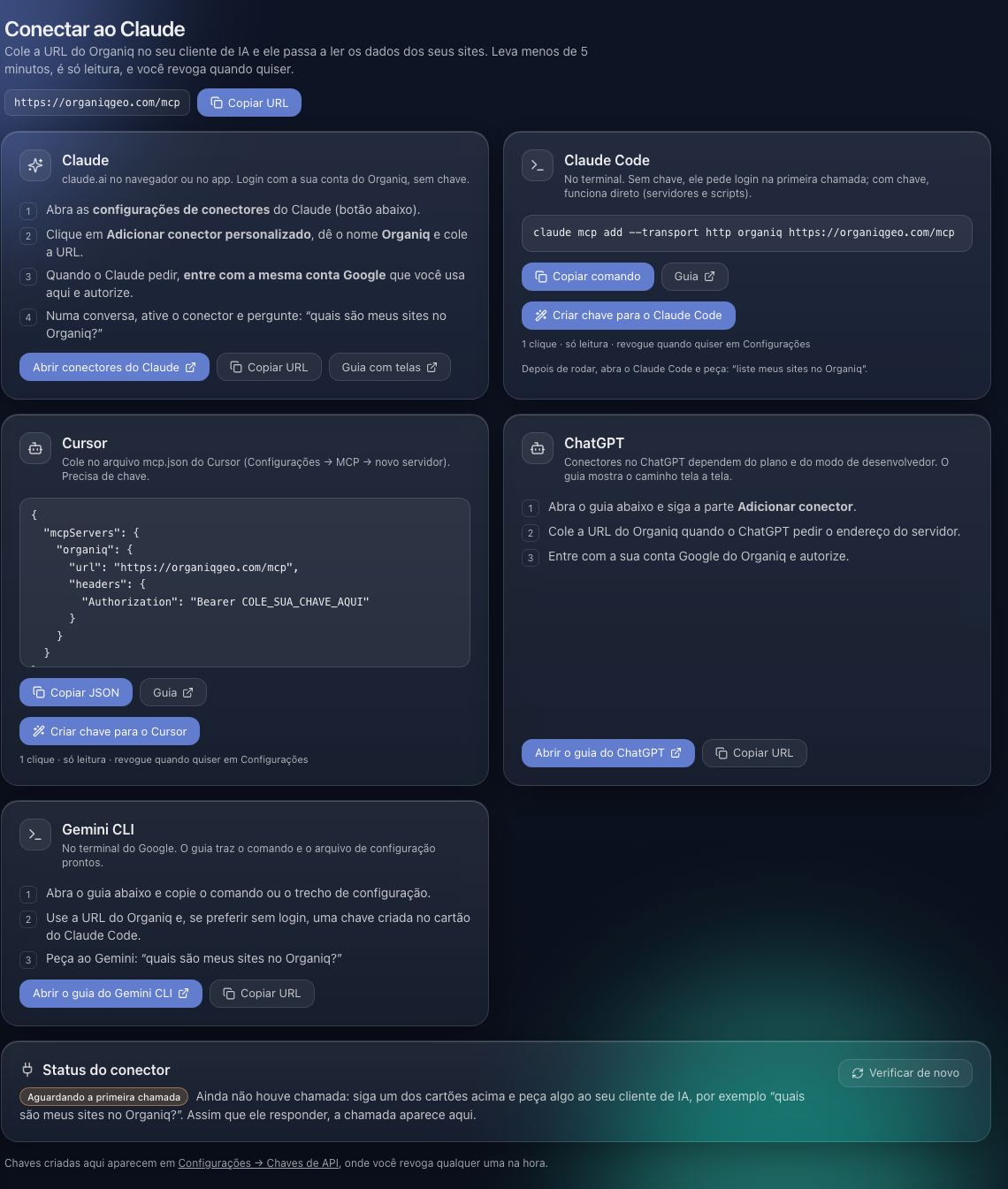
Click Connect in your AI client and sign in with the Google account that has the site in Search Console: the Organiq sign-in asks for read-only Search Console and Google Analytics access, creates the account, imports the properties and activates the chosen one. The dashboard (app.organiqgeo.com, Connect Search Console button) does the same. The consent is always the human's.
What does the Search Console connection enable?
Clicks, impressions, CTR and position by query, page, country and device, synced daily into the Organiq database: first the 16 months Google keeps, then every new day (the window you can query depends on the plan: plans). In the connector, 41 of the 44 tools need an active property; only get_capabilities, get_ctr_benchmark and check_connection work without one. The connector only issues access to accounts with at least one active property.
Step by step: through the AI client or the dashboard
- Through the AI client (Claude, ChatGPT, Cursor, Gemini CLI): add the connector (client guides) and click Connect. The browser opens Google sign-in.
- Sign in with the Google account that has the site verified in Search Console. Google asks for e-mail, name and picture plus the read-only permissions for Search Console and Google Analytics: keep both ticked (the Analytics one is what GA4 uses later).
- Organiq creates the account if it does not exist and imports the verified properties. With one, it is activated right away; with several, the "Permitir acesso?" (allow access) screen asks you to pick one (the others can be activated later in the dashboard, within the plan limit). Click Permitir (Allow).
- Done: the client is connected and the first sync is run by the worker (16 months of history);
check_connectionshowsdataFrom/dataToonce the data exists, and the dashboard sends an e-mail when it finishes. - Through the dashboard, if you prefer to start there: sign in at app.organiqgeo.com, at app.organiqgeo.com/onboarding click Connect Search Console (same consent), in step 2 click Fetch properties and enable the ones you want; then connect the AI client with the same Google account. The "Integrations" block already accepts GA4, Bing and brand terms.
If you are an AI assistant, what can you do on your own?
Search Console is connected in the connector's own sign-in; no tool makes that connection. What you, the assistant, can do on your own:
- Call
list_sitesto get the propertyidandcheck_connection, which returnshasGa4,hasBing,brandedTermsCountand themissinglist with apanelUrlandnextStepper property. - Start the connection: let the client open the sign-in (the Connect card,
/mcp→ Authenticate, or the 401 withresource_metadata) and hand the human the link the client returns; no account has to be created in the dashboard first. - Hand the human the direct link (
app.organiqgeo.com/site/<id>, "Integrations" block, or app.organiqgeo.com/onboarding) and the exact button name, then wait until they say it is done. - When the human says it is done, call
check_connectionagain:authenticated: trueand the property inproperties;dataFrom/dataToappear after the worker's first sync.
What only the human does, in their own browser or portal:
- Consent on Google's screen (with their account) and click Permitir (Allow) on the Organiq screen, picking the property when there are several.
- If the "Falta uma propriedade do Search Console" (a Search Console property is missing) screen appears: verify the site in Search Console with that Google account (or sign in with the account that already has it) and click Connect again.
Common errors and what to do
- "Falta uma propriedade do Search Console" (a Search Console property is missing) on the Organiq screen after sign-in: that Google account's Search Console returned no verified property, or the Search Console read permission was left unticked on Google's screen. Verify the site in Search Console with that account (or sign in with the account that already has it), go back to the app and click Connect again with the permission ticked; the property is imported at sign-in. The dashboard also works: app.organiqgeo.com, "Fetch properties".
- "Não foi possível ativar a propriedade" (could not activate) when picking one of several: usually the plan's property limit. Disable another one in the dashboard or see the plans.
- Connection "revoked" or "error" in the dashboard: click Reconnect and redo Google's consent (this happens after revoking access at myaccount.google.com/permissions or changing the password).
- The property does not show up under "Fetch properties": it is not verified in Search Console, or it belongs to another Google account. Verify it there and click Refresh properties; for another account, use Reconnect with that account.
- Property enabled but no numbers: the first sync has not stored data yet.
check_connectionshowsdataToonce there is data; the dashboard refreshes by itself. - "Data older than 7 days" in
check_connection: the sync stopped, usually because access was revoked. Open the dashboard and click Reconnect.
Frequently asked questions
Do I need to create the account in the dashboard before connecting the AI?
No. Since October 30, 2026 the connector sign-in creates the Organiq account, imports the Search Console properties and activates the chosen one. The dashboard (app.organiqgeo.com) remains the place to manage properties, GA4, Bing, brand terms and the plan.
Do I need to connect Search Console again for each AI client?
No. The Search Console connection lives in the Organiq account; each AI client (Claude, ChatGPT, Cursor, Gemini CLI) does its own OAuth sign-in with the same Google account, and the properties already imported serve all of them.
Does Organiq write anything to Search Console?
No. Access is requested with the webmasters.readonly and analytics.readonly scopes; no tool submits sitemaps, requests URL removals or changes the property.
How do I revoke access?
At myaccount.google.com/permissions (removes Google access) and, to delete the synced data, at app.organiqgeo.com/exclusao-de-dados. Details under security.
How many properties can I activate?
It depends on the plan: 1 on Free, 5 on Starter and 50 on Agency (plans). The others stay imported but disabled.
Why does the consent include Google Analytics?
Because it is the same flow GA4 uses later, in the "Integrations" block. If the Analytics permission is not granted, the GA4 section shows a notice and the "Reconnect Google account" button; Search Console keeps working.